A ghost hunt.
Right in your room.
Meet a cast of ghosts through your iPhone camera. Follow the signal, look around, and tap to catch.

-
Scan your space
Allow camera access and slowly look around a clear, well-lit space.
-
Follow the signal
Listen for search beeps and feel the vibration change as you get closer.
-
Tap to catch
Spot a ghost through your camera, then tap it to add to your catch count.
Requires iOS 18 or later and an iPhone with ARKit support.
A peek inside Ghosty App
From the hunt to your favourite ghosts.
Illustrative mockups — real iPhone screenshots coming soon.
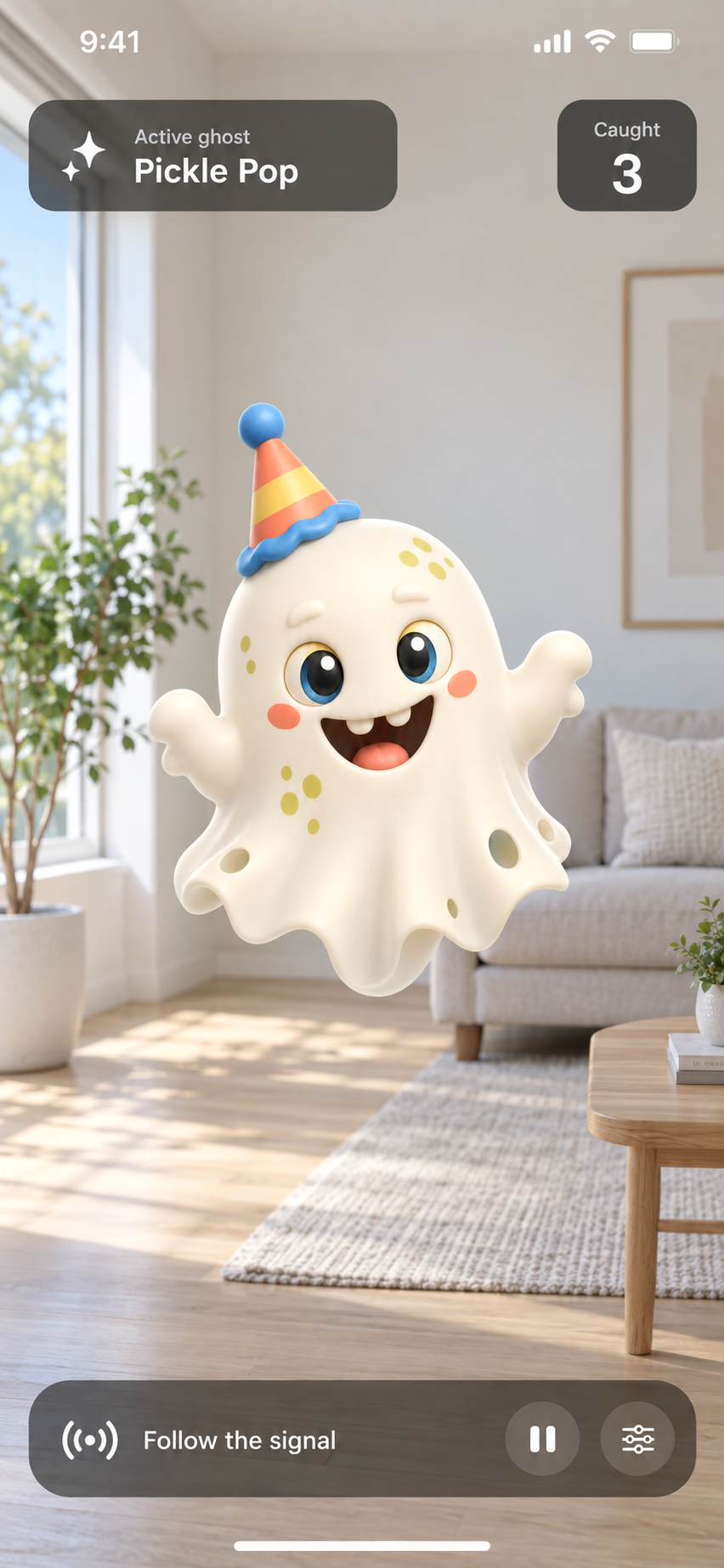
Find a ghost
Follow the signal and tap a ghost to catch it.
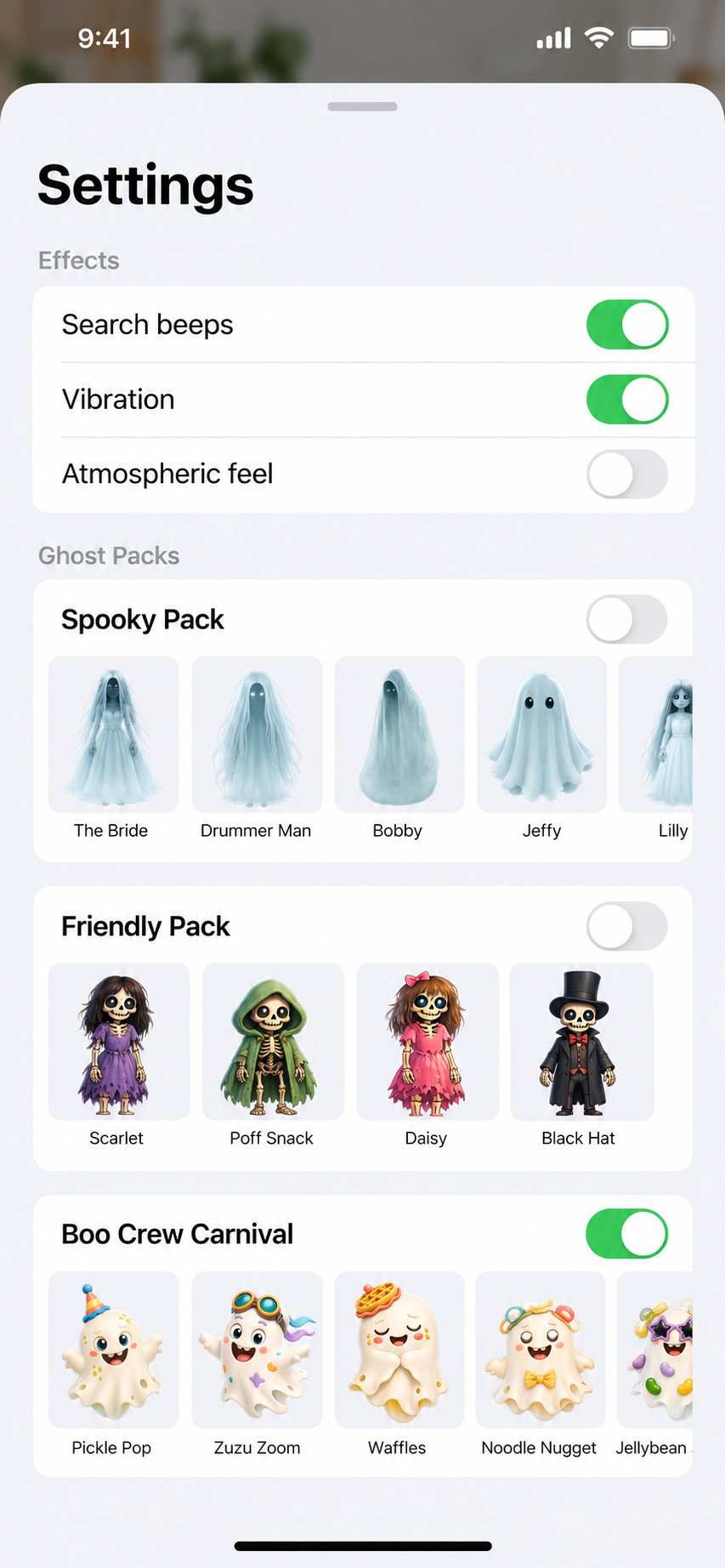
Choose your packs
Pick the ghosts and effects for your hunt.
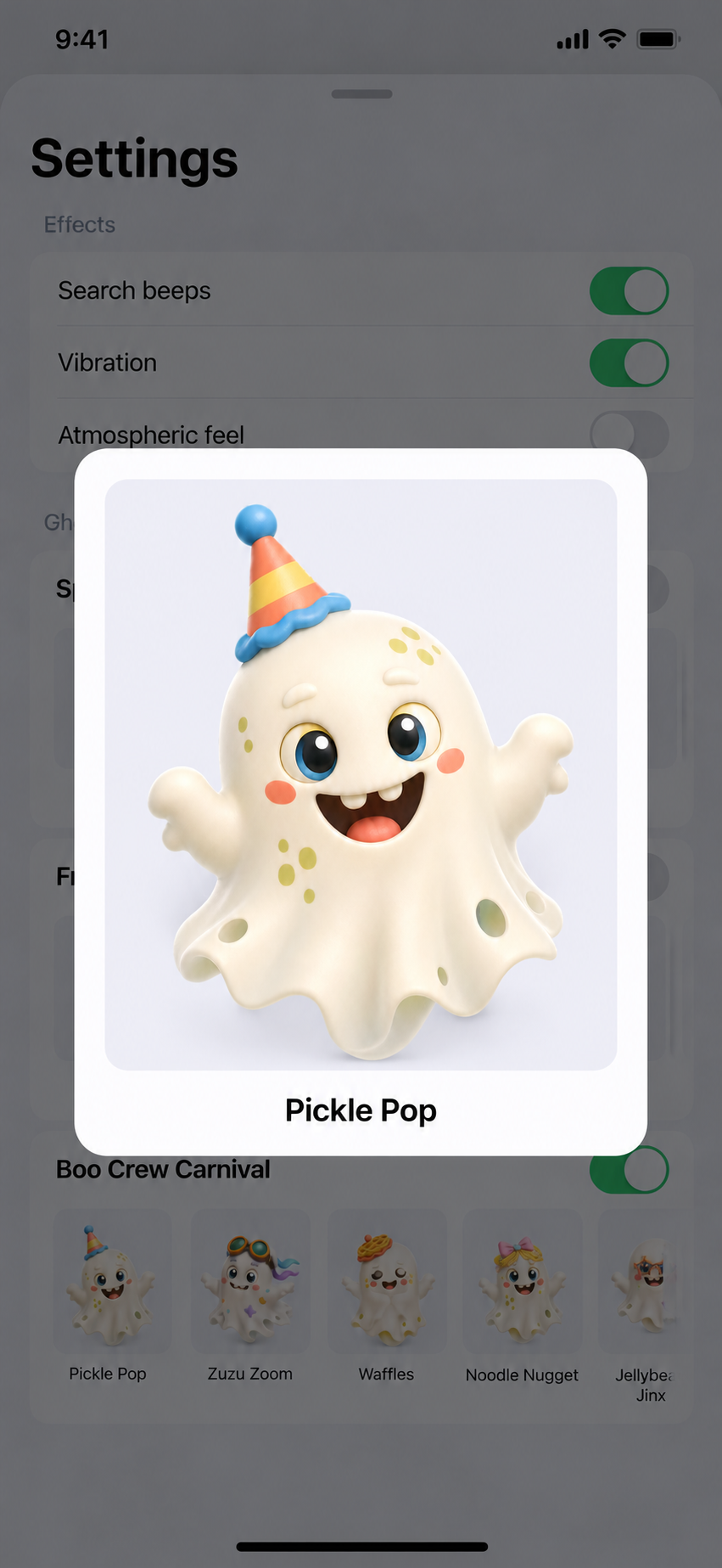
Meet the cast
Take a closer look at each ghost before you play.
A little help
for your hunt.
Questions, feedback, or a ghost that won't appear? We're here to help.
Email support
Include your iPhone model, iOS version, and what happened. Please avoid sending photos of people or private spaces.
Why does Ghosty App need my camera?
The camera lets ARKit place fictional ghosts in your surroundings. Camera images stay on your device. Ghosty App does not record or upload photos, videos, or room maps.
If access is off, use the app's Open Settings button, or go to iOS Settings and enable Camera for Ghosty App.
I can't see a ghost. What should I try?
Check that camera access is enabled and the hunt is running. Move your iPhone slowly and point it toward textured surfaces such as furniture, walls, and the floor. Give the app a few seconds to map the room, then look around and follow the beeps.
Play in a clear, well-lit space and stay aware of your surroundings. The pause/play button at the bottom of the app stops or resumes the hunt.
Can I change the ghost packs and effects?
Open the app's Settings to choose from Spooky Pack, Friendly Pack, and Boo Crew Carnival. Tap a ghost thumbnail to preview it. Keep at least one pack enabled; to turn Spooky off, enable another pack first.
You can also change Search beeps, Vibration, and Atmospheric feel. If sound is missing, check Search beeps, your iPhone's volume, and Silent mode.
How do I remove my saved progress?
Go to iOS Settings → General → iPhone Storage → Ghosty App → Delete App. This removes the app's local progress and preferences. Offload App keeps its data.
There is no account to delete. Device and iCloud backups are managed separately through your Apple settings.